

Hide cell contents#
You can use Jupyter Notebook cell tags to control some of the behavior of the rendered notebook.[1] If you are using cell tags for the first time, you can read more about them in this tutorial https://jupyterbook.org/en/stable/content/metadata.html#add-metadata-to-notebooks
Hide code cells#
You can use cell tags to control the content hidden with code cells at the cell level. Add the following tags to a cell’s metadata to control what to hide in code cells:
hide-inputtag to hide the cell inputshide-outputto hide the cell outputshide-cellto hide the entire cell
For example, we’ll show cells with each below.
Here is a cell with a hide-input tag.
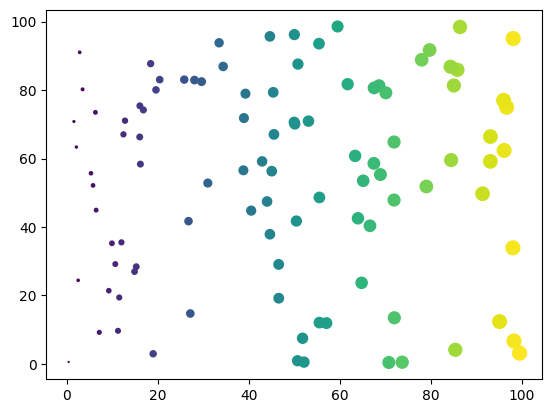
Here’s a cell with a hide-output tag:
# This cell has a hide-output tag
fig, ax = plt.subplots()
points =ax.scatter(*data, c=data[0], s=data[0])
Here’s a cell with both hide-input and hide-output tags:
Here’s a cell with a hide-cell tag:
Finally, a cell with both remove-input (see below) and hide-output tags:
You can control the hide/show prompts by using the code_prompt_show and code_prompt_hide configuration options.
The optional {type} placeholder will be replaced with content, source, or outputs, depending on the hide tag.
See the Configuration section for more details.
```{code-cell} ipython3
:tags: [hide-cell]
:mystnb:
:  code_prompt_show: "My show prompt for {type}"
:  code_prompt_hide: "My hide prompt for {type}"

print("hallo world")
```
Hide markdown cells#
You cannot hide an entire markdown cell, but you can hide sections of markdown content by using roles and directives.
For information on how to hide / toggle markdown content in Sphinx, see either the sphinx-togglebutton documentation or the sphinx-design dropdowns documentation.
Remove parts of cells#
Sometimes, you want to entirely remove parts of a cell so that it doesn’t make it into the output at all.
To do this at the global level, use the nb_remove_code_source or nb_remove_code_outputs configuration options, or at a per-file level, e.g.
---
mystnb:
  remove_code_source: true
  remove_code_outputs: true
---
See the configuration section for more details.
At a per-cell level you can use the same tag pattern described above,
but with the word remove_ instead of hide_. Use the following tags:
remove-inputtag to remove the cell inputsremove-outputto remove the cell outputsremove-cellto remove the entire cell
Here is a cell with a remove-input tag. The inputs will not make it into
the page at all.
Here’s a cell with a remove-output tag:
fig, ax = plt.subplots()
points = ax.scatter(*data, c=data[0], s=data[0])
And the following cell has a remove-cell tag (there should be nothing
below, since the cell will be gone).